

This guide explains how to configure a Storage Bucket resource in Revolte. Storage buckets are modular building blocks used for object storage, uploads, and asset delivery.Documentation Index
Fetch the complete documentation index at: https://www.sunny-dev.info/llms.txt
Use this file to discover all available pages before exploring further.
Combined Deployments
If your application requires compute (API) alongside object storage, you should select one of the following presets during the Choose a Preset step:- Webservice + StorageBucket
- Webservice + Database + StorageBucket
- Webservice + StorageBucket + Cache
- Webservice + Database + StorageBucket + Cache
Note: For all combined presets, the core configuration workflow is identical to a standard Web Service. This guide focuses specifically on the supplemental Storage Bucket settings described below.
Choose a Preset
Select the Storage Bucket tile for a standalone instance, or choose one of the combined presets listed above for full-stack deployments.
Storage — Environment Settings
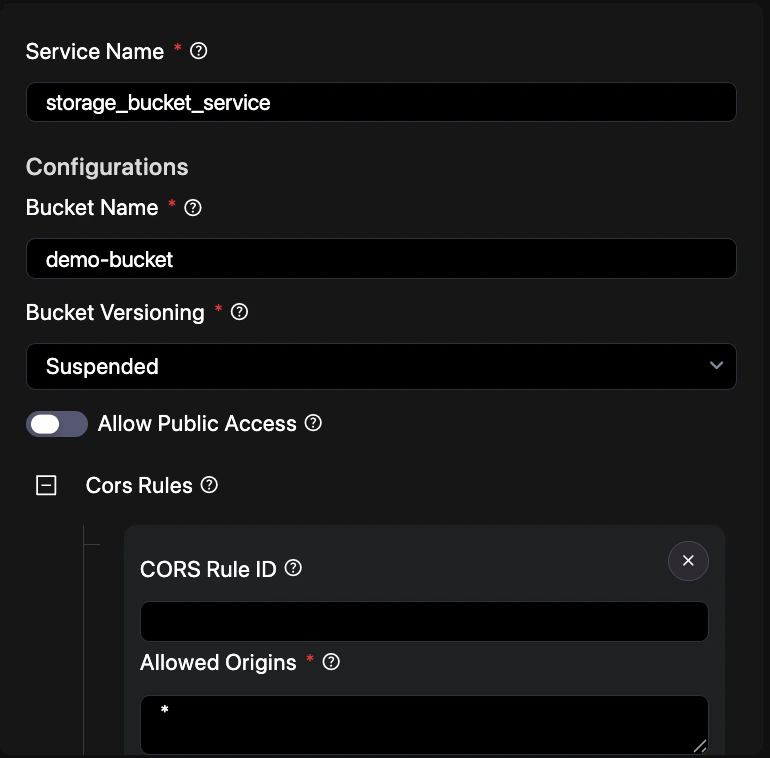
- Service Name — Enter a unique identifier for this storage service (e.g.,
app_assets). - Configurations
- Bucket Name — A unique name for your storage bucket.
- Bucket Versioning — Enable to keep multiple versions of an object in the same bucket.
- Enable Public Access — Toggle to allow public read access to objects via URL.
- CORS Rules — Define cross-origin resource sharing rules to allow web applications to access bucket contents safely.
Tip: Use public access only for files intended for direct browser consumption, like images or CSS assets.
Quick Reference: