

Launch your first AI-powered development workflow in minutes by connecting your Jira workspace and defining your automation rules.Documentation Index
Fetch the complete documentation index at: https://www.sunny-dev.info/llms.txt
Use this file to discover all available pages before exploring further.
Initialize Workflow Automation
Navigate to your application integration settings. Under Jira Configuration, select Configure Workflow Automation to begin the setup process.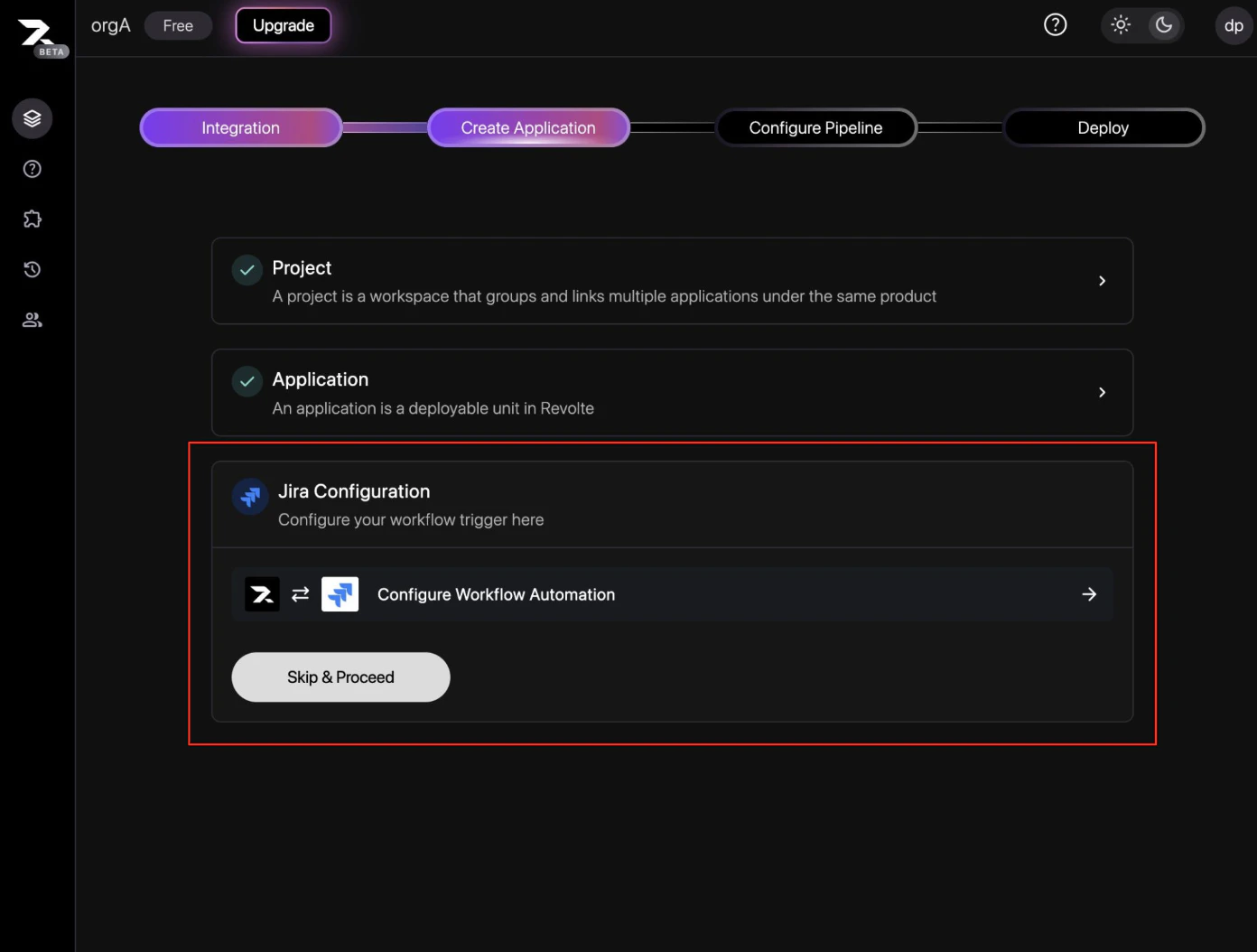
Access Automation Control
Go to the Automation Configurations tab. If no workflows are active, you will see the initialization screen. Click Configure Automation.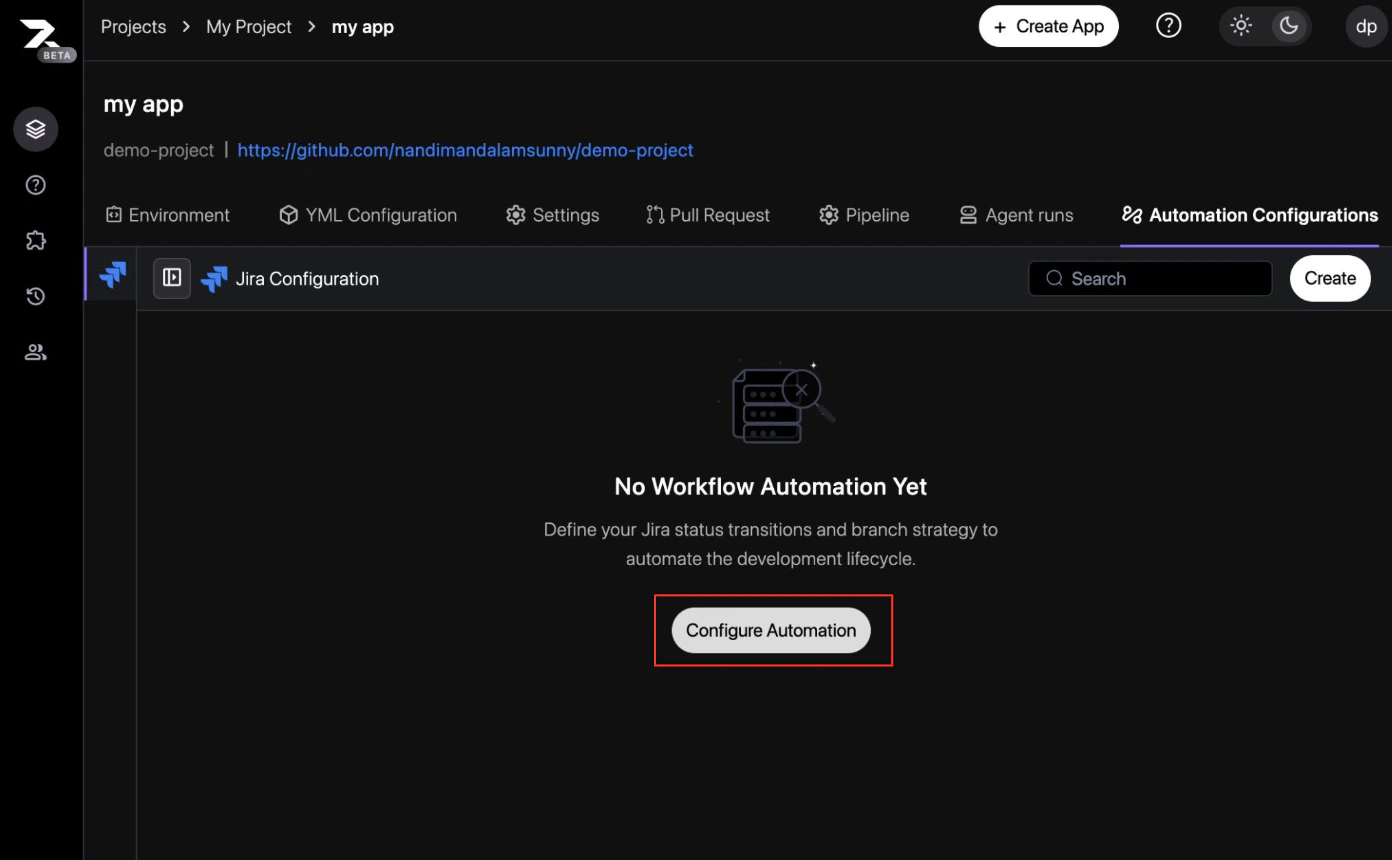
Map Status Transitions
Define how Revolte should interact with your Jira statuses.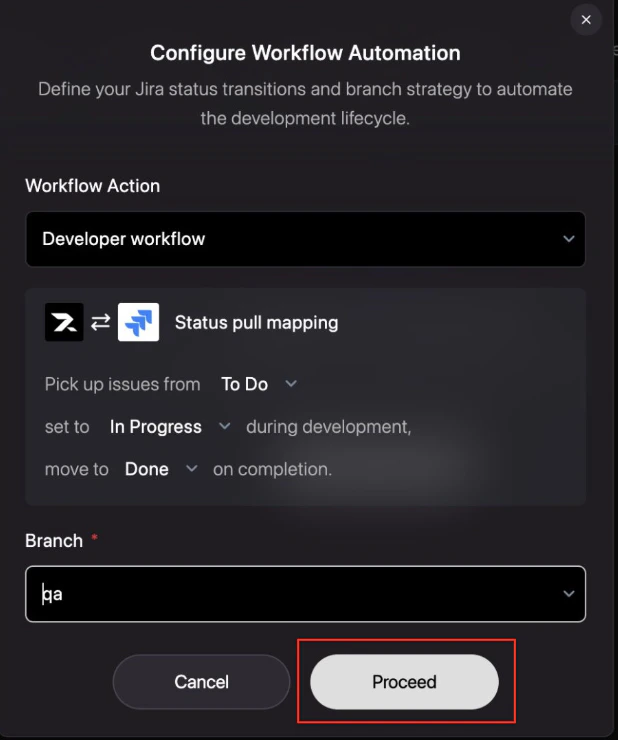
- Action: Select
Developer workflow. - Mapping: Choose which statuses trigger development (e.g., To Do to In Progress) and completion (e.g., Done).
- Target Branch: Specify the branch where AI changes should be proposed (e.g.,
qaormain).
Confirm Workflow Creation
Once saved, your new workflow will appear in the active configurations list, showing the branch mapping and status flow.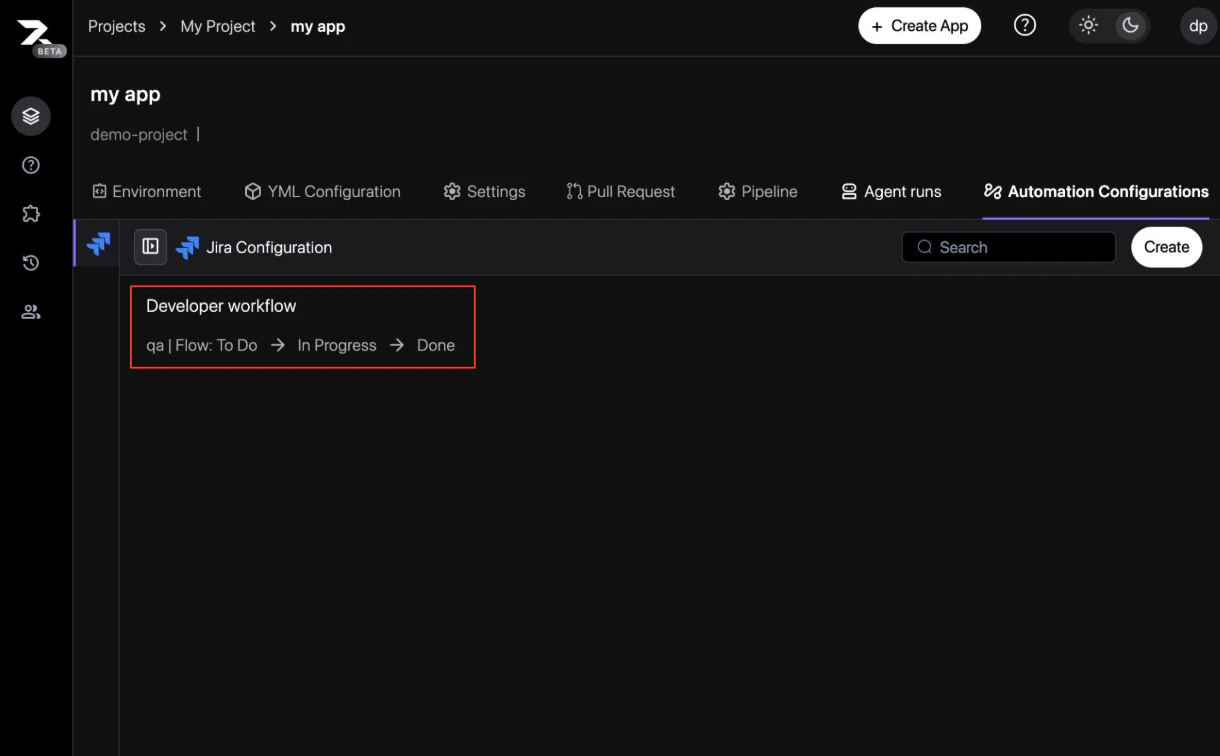
Tag Jira Tickets
To trigger the workflow for a specific task, add the label 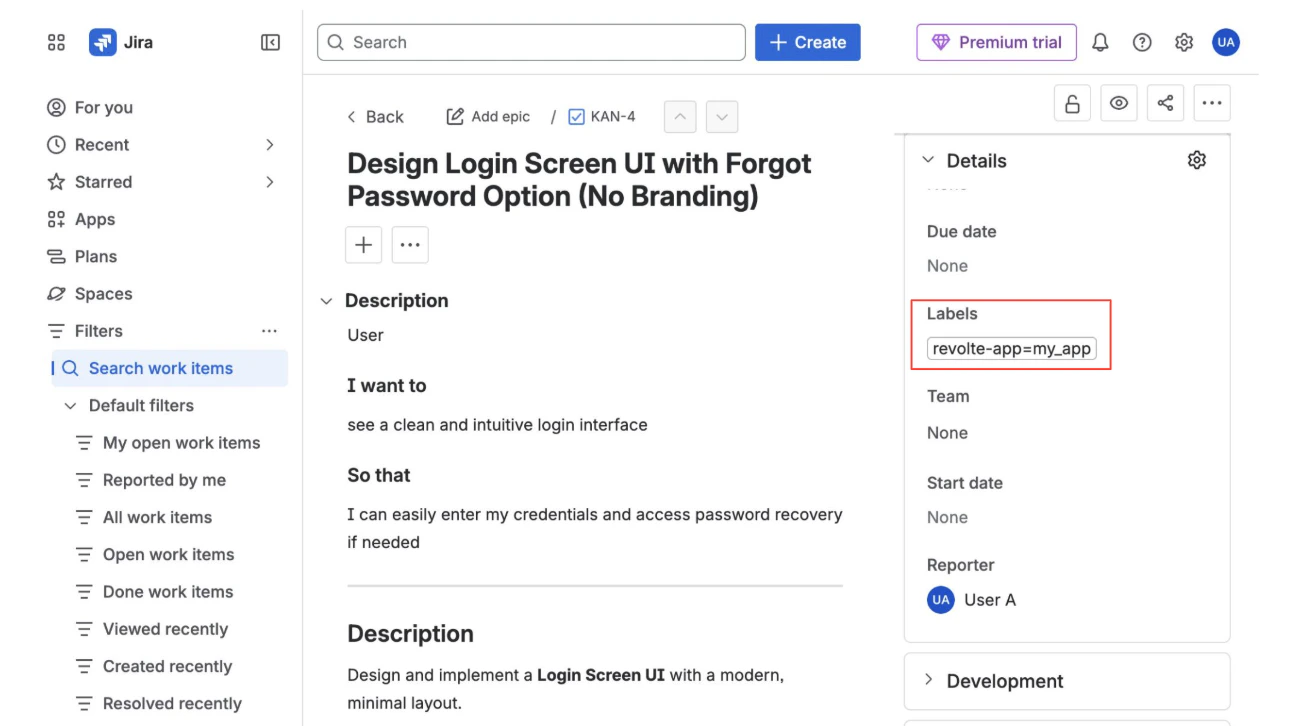
revolte-app={your_app_name} to any Jira Ticket.See the Jira Integration Guide for detailed connection steps.
Execute Workflow
With the label added, a Revolte section will appear in the Jira sidebar. Click Run Workflow to hand the task over to the AI agent.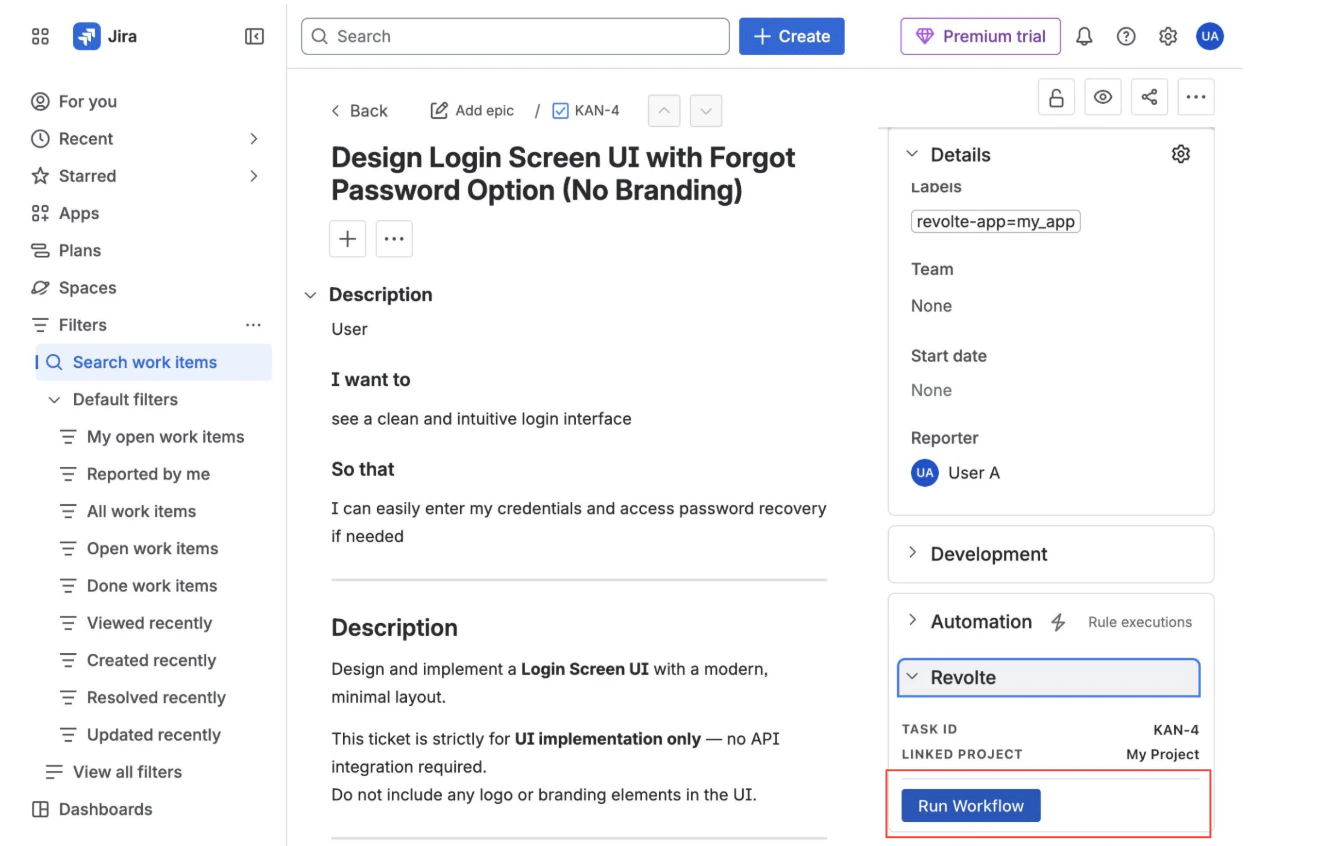
Monitor Live Progress
Switch back to the Revolte dashboard under Agent runs to see the real-time status of your workflow.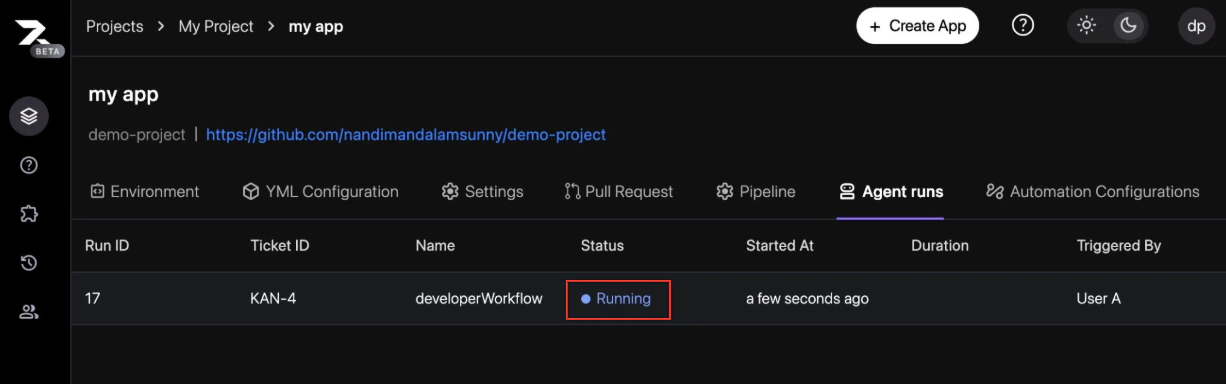
Review Execution Summary
Once complete, drill down into the run to see the execution stages, including Sandbox Provisioning, Code Setup, and Token Usage statistics.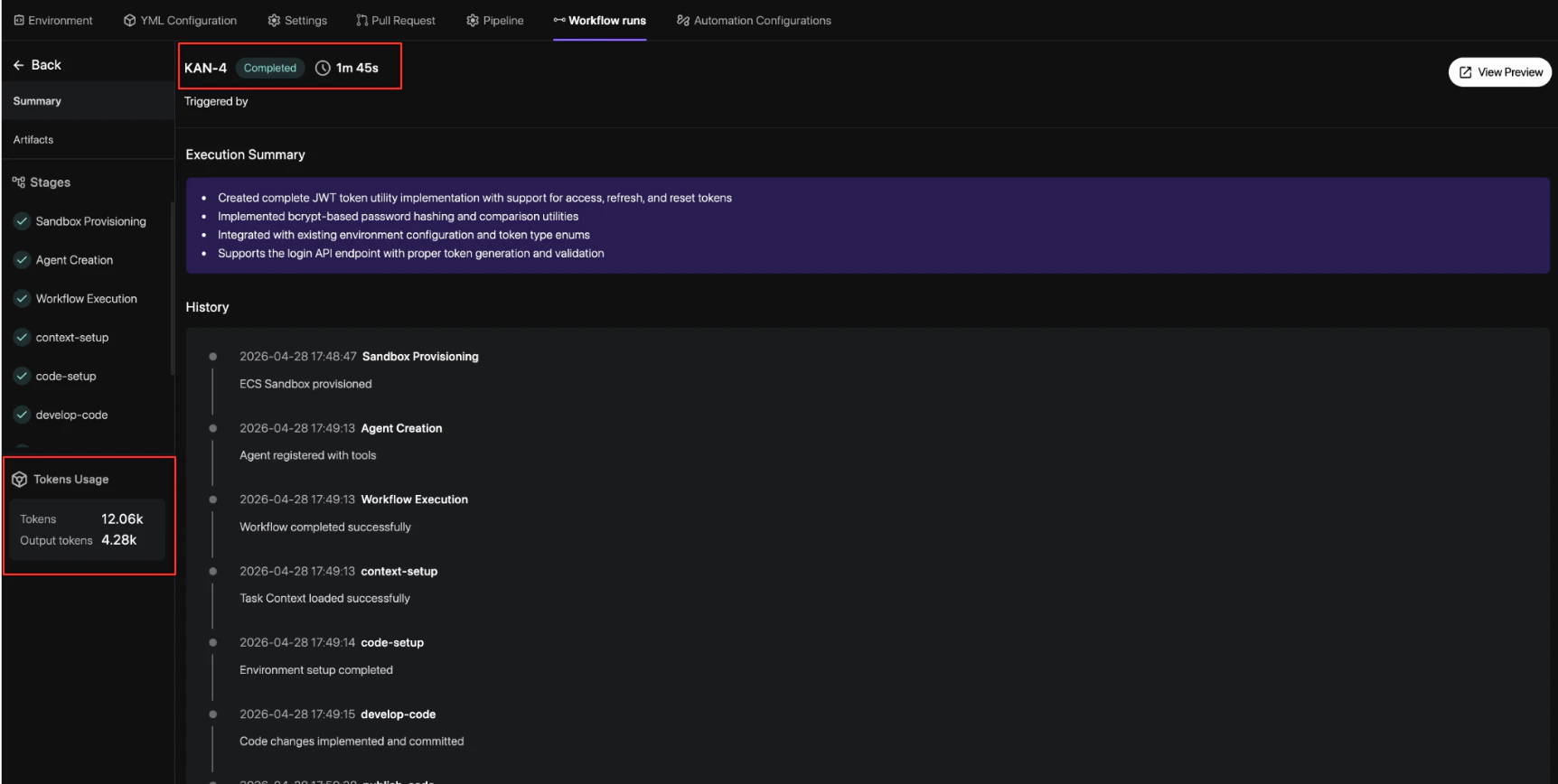
Inspect Implementation Plan
Navigate to the Artifacts tab to review the AI-generated implementation plan, including sub-tasks and proposed file changes.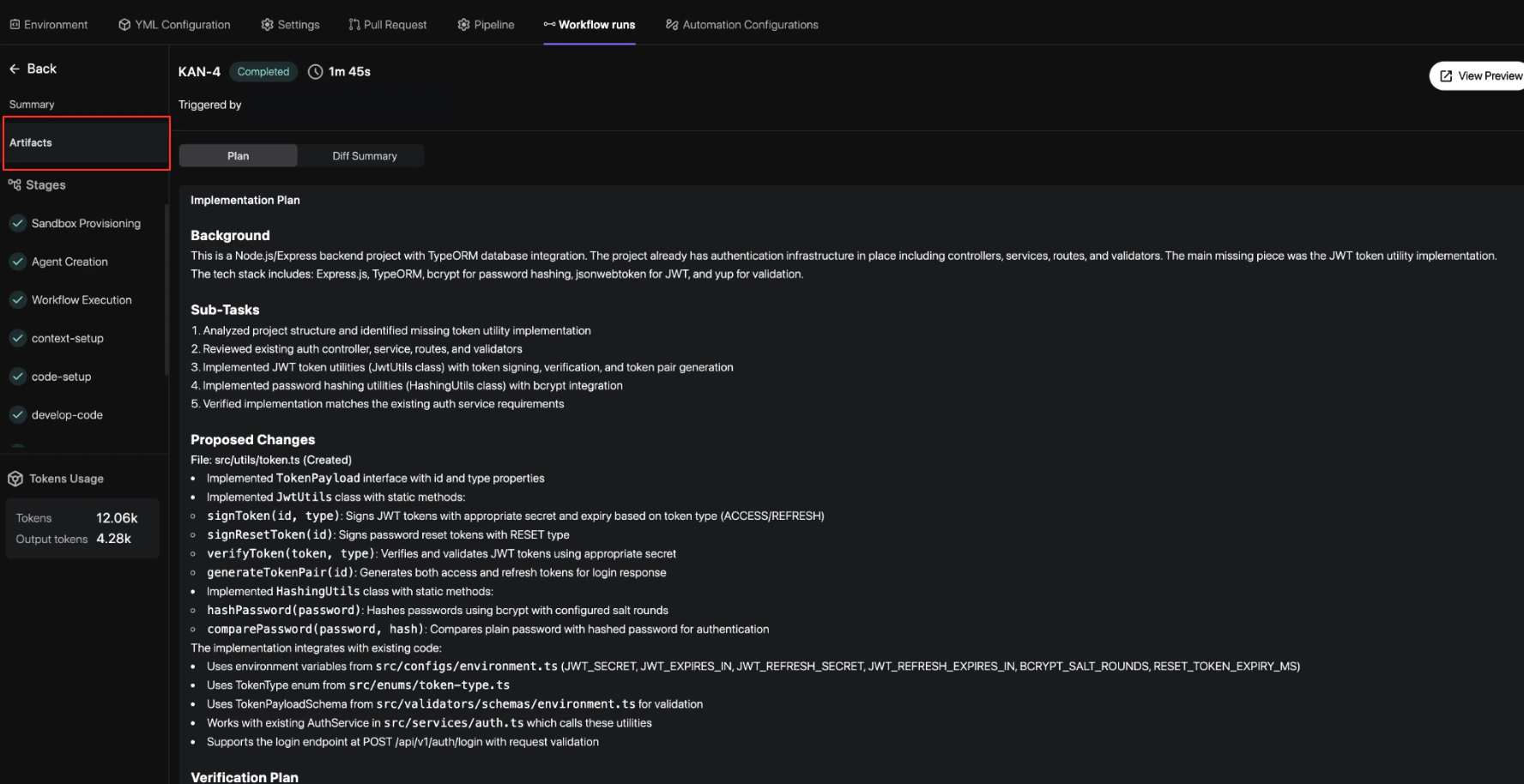
Analyze Code Diffs
Finally, use the Diff Summary tab to inspect every line of code modified or created by the agent before finalizing the delivery.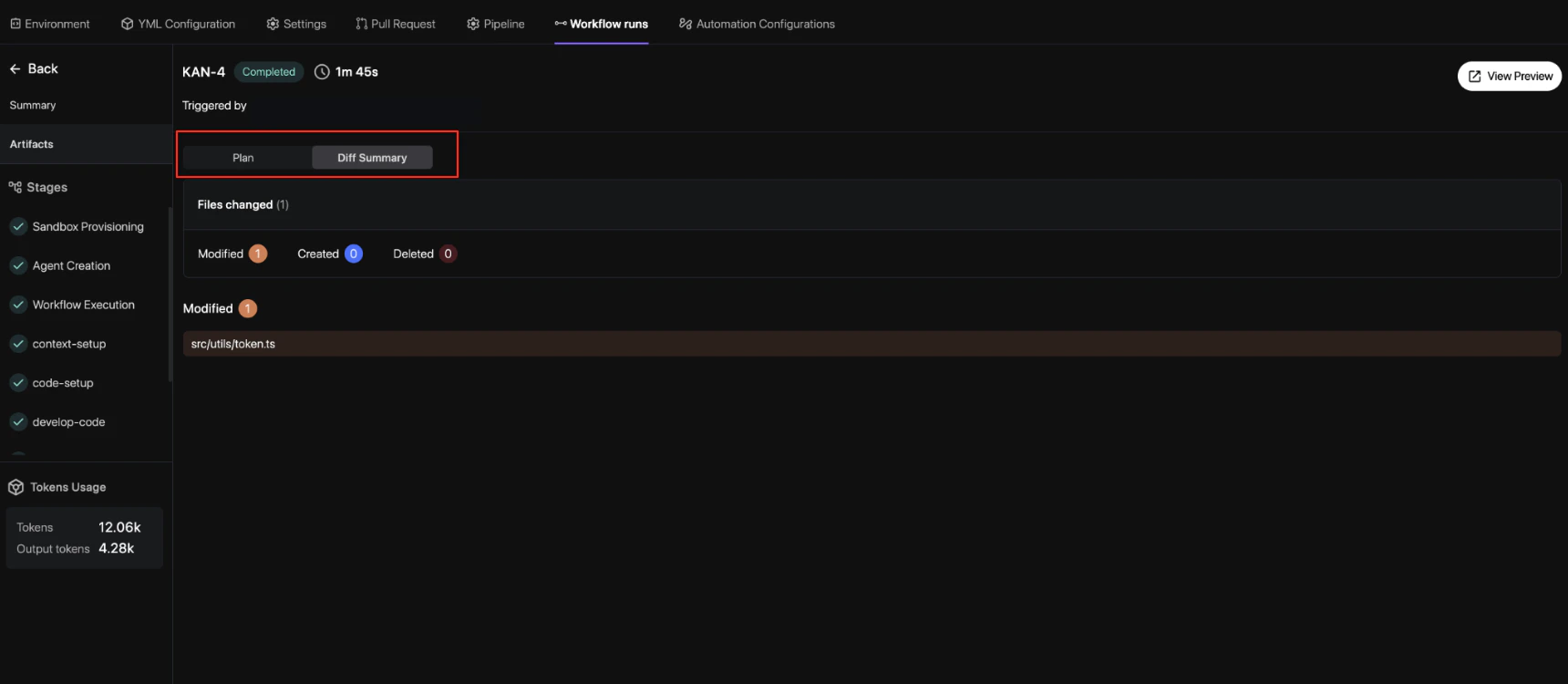
Review and Merge
Once the agent finishes, it automatically opens a Pull Request on GitHub (or your configured Git provider) so you can review and merge the proposed changes.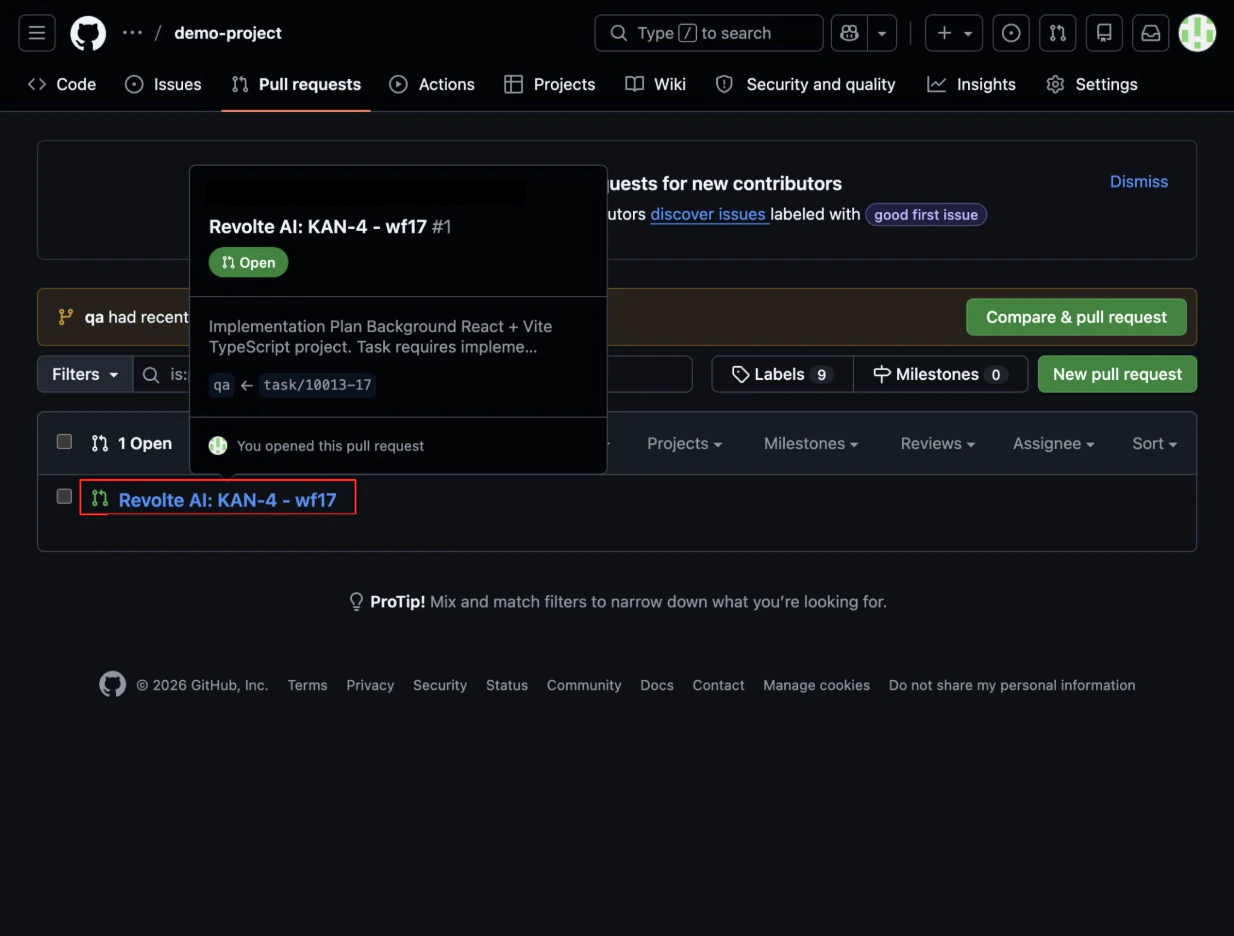
Deploy to Preview
After merging, you can deploy the changes to a preview environment. Click View Preview and confirm the deployment using your 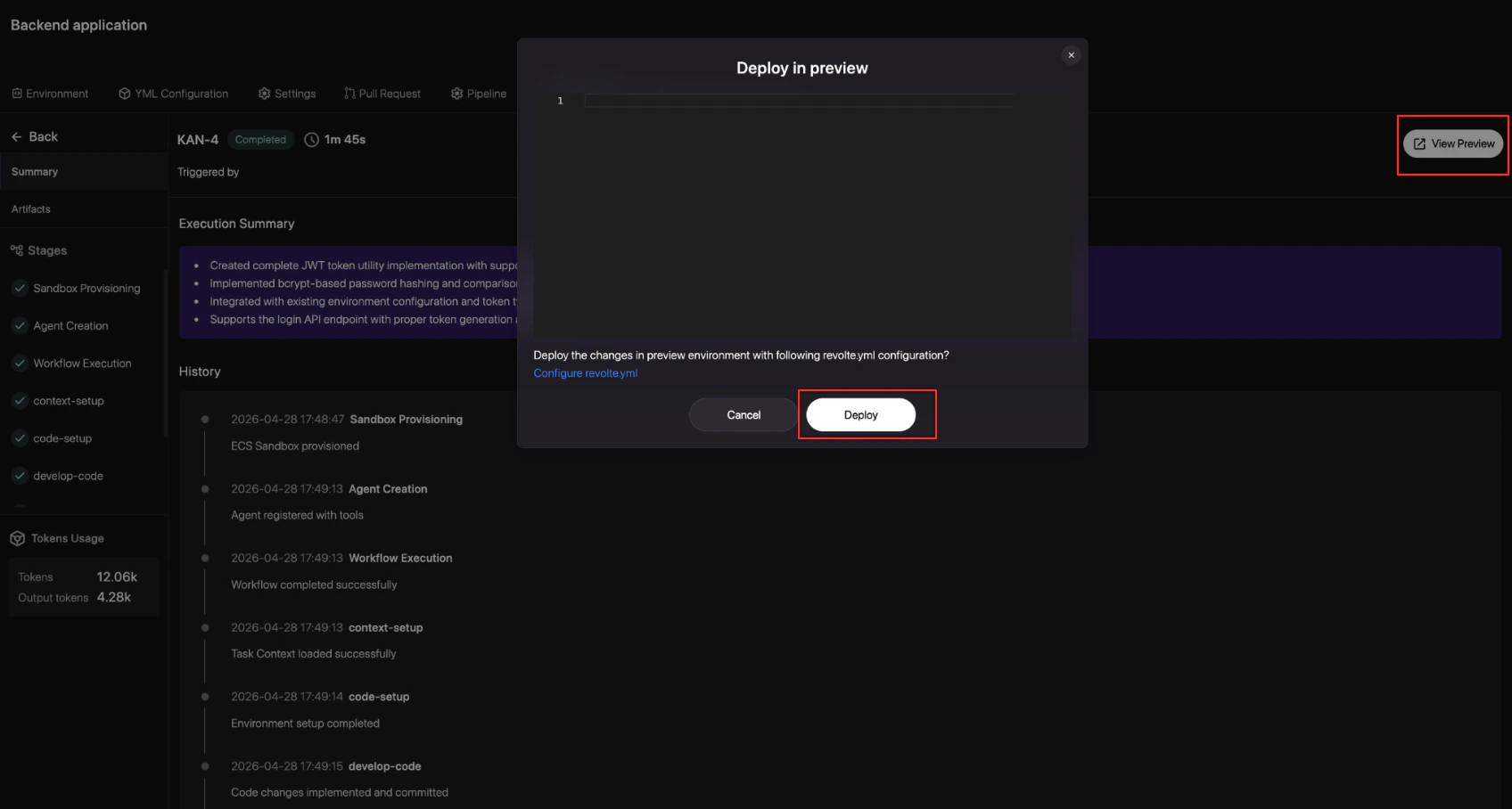
revolte.yml configuration.Next Steps
- Overview of Development Workflows
- Quality Assurance Gates (Coming Soon)
- Product Strategy Automation (Coming Soon)